Use cases
Start with work
you already have.
Coordinate agents, work through a meeting, build a presentation, or explore an idea. Keep the context and the next step together.
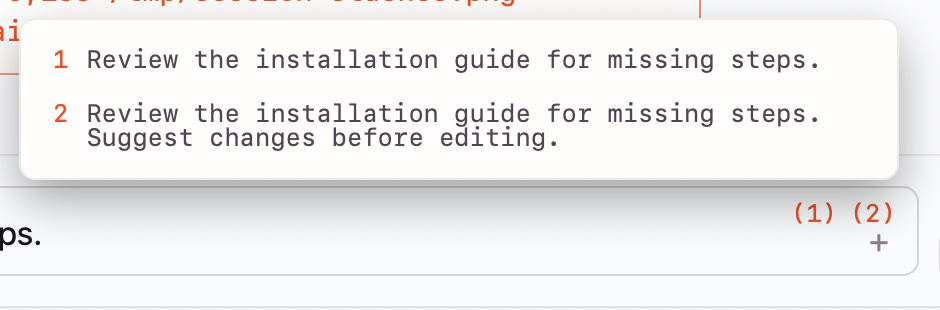
Screenshots show Haicue’s app components with sample conversations and workspace data.
01 · Project work
Keep the work beside the conversation.
Bring a brief, source files, and a task into a thread. Work with your agent there, save the result, and return to the same context when the task continues.
This works for a code change, a research note, or a draft that needs another pass. You can open another session in the same thread without moving the files.
“Read the brief and notes in this thread. Draft a plan in out/, and flag the decisions you need from me.”Start your first thread →
02 · Agent orchestration
Split the work. Keep one place to coordinate.
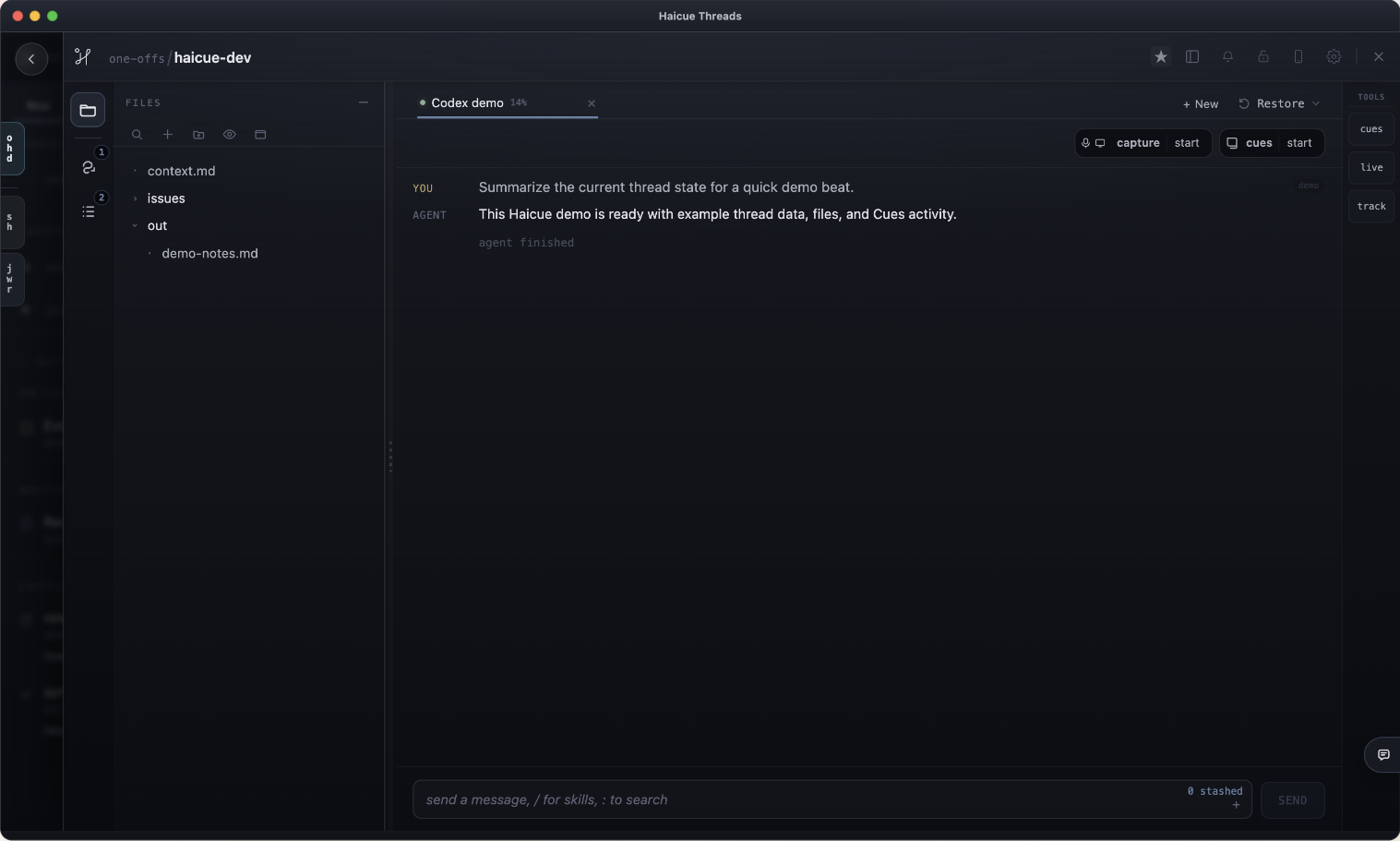
Use Index thread to ask an agent to open threads and sessions for separate pieces of work. Give each session a clear task, its own context, and a place to save the result.
For a product change, one agent can research options while another reviews the existing code. The coordinating agent can inspect their progress, send follow-ups, and compare the reports before you choose what to do next. Haicue can also reorganize the threads while keeping their sessions intact.
“From Index thread, open a research thread and a code-review thread for this change. Start a session in each and give them separate tasks. Have them save their findings, then compare the reports here and flag anything that needs my decision.”Coordinate from Index thread →
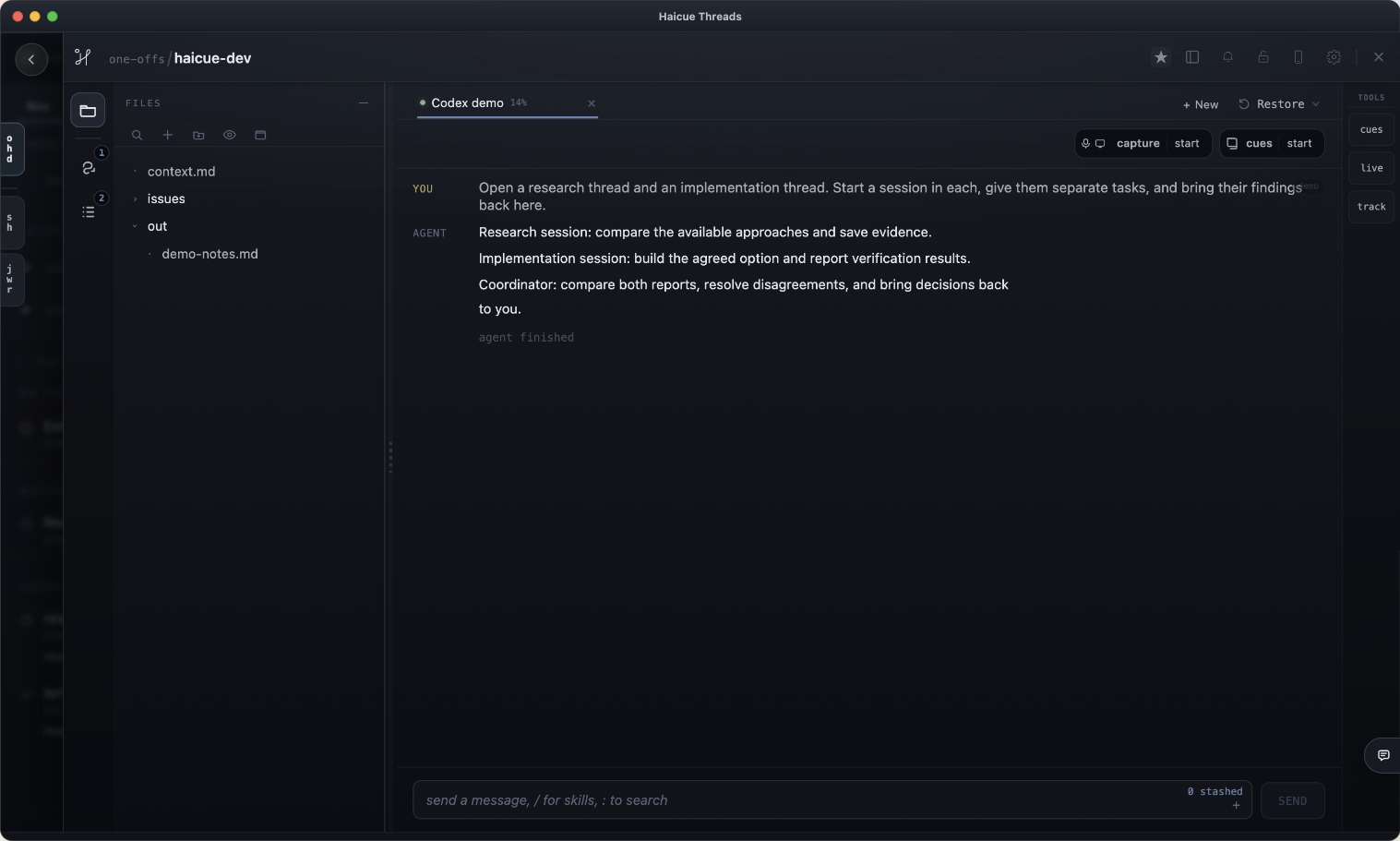
Choose how each session runs.
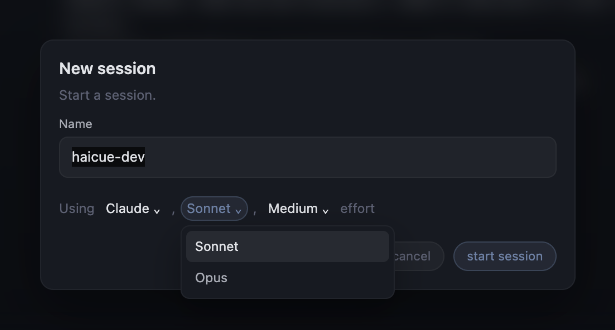
Name the session, choose its agent and model, and set the effort where supported. Available models depend on the installed runtime and account. More about sessions →
03 · Meetings
Leave the meeting with more than a transcript.
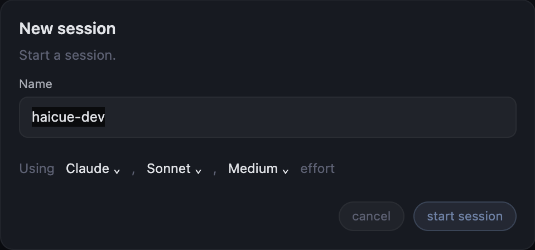
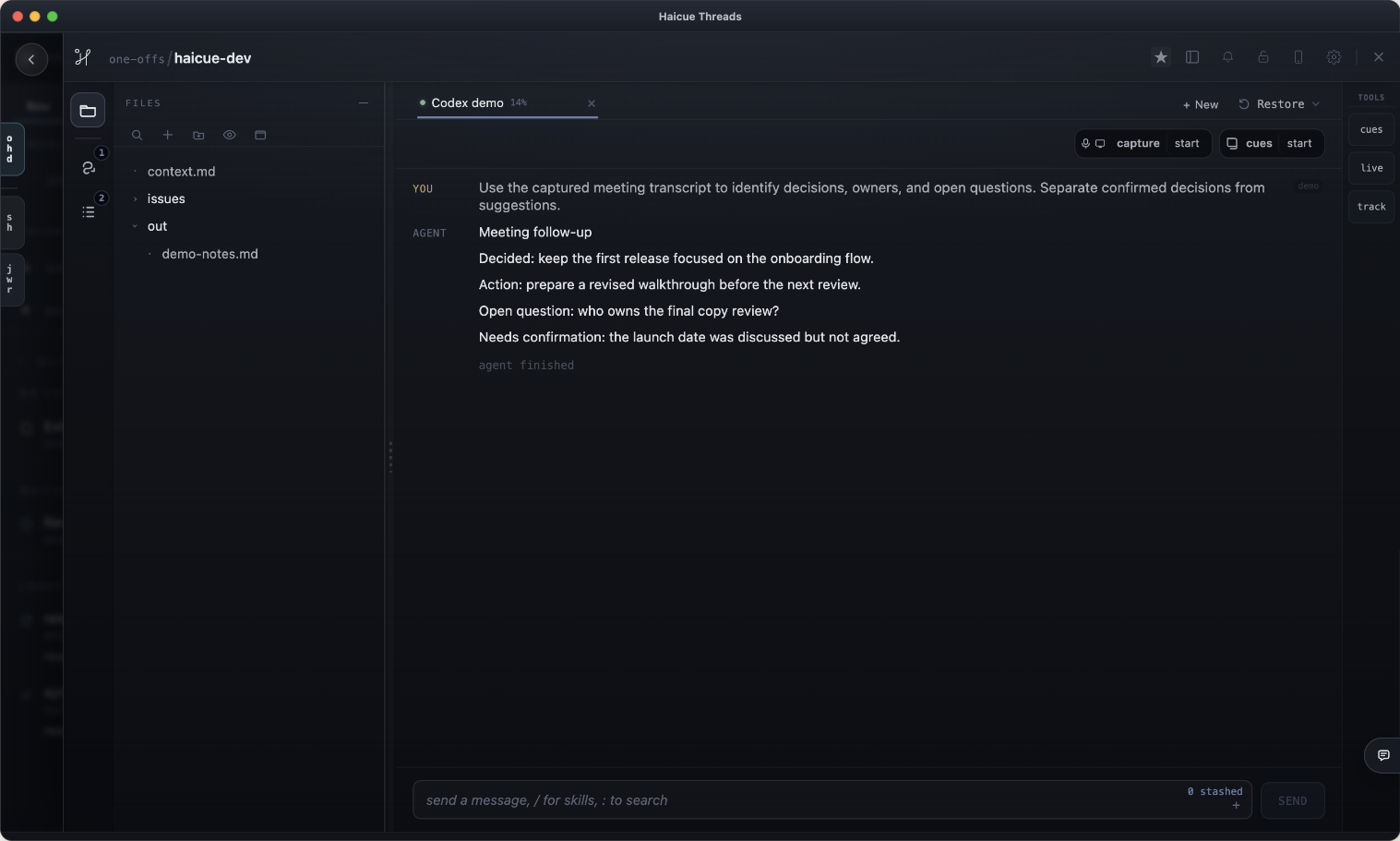
Bring the agenda into a thread and start Live Capture with the sources and permissions you need. Your agent can use the incoming transcript as context while the conversation continues.
Ask for a recap of what was agreed, a reminder of an earlier point, or questions worth raising. Afterwards, save the decisions and action items in the thread. Put unresolved questions in Awaiting so the follow-up stays attached to the meeting.
“Use this meeting’s transcript to list decisions, owners, and open questions. Separate confirmed decisions from suggestions. Save a follow-up note, and flag missing owners or dates instead of guessing.”Bring a meeting into context →
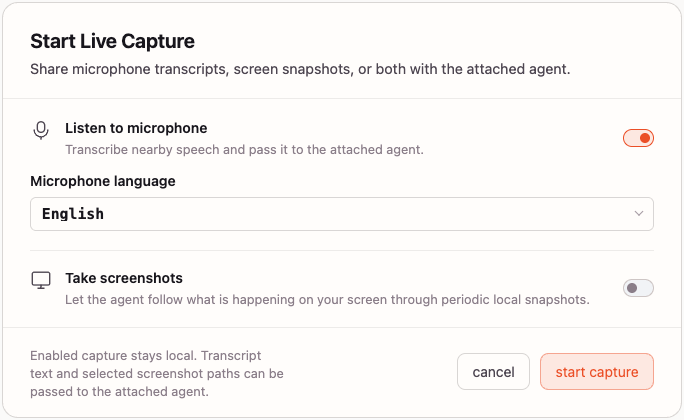
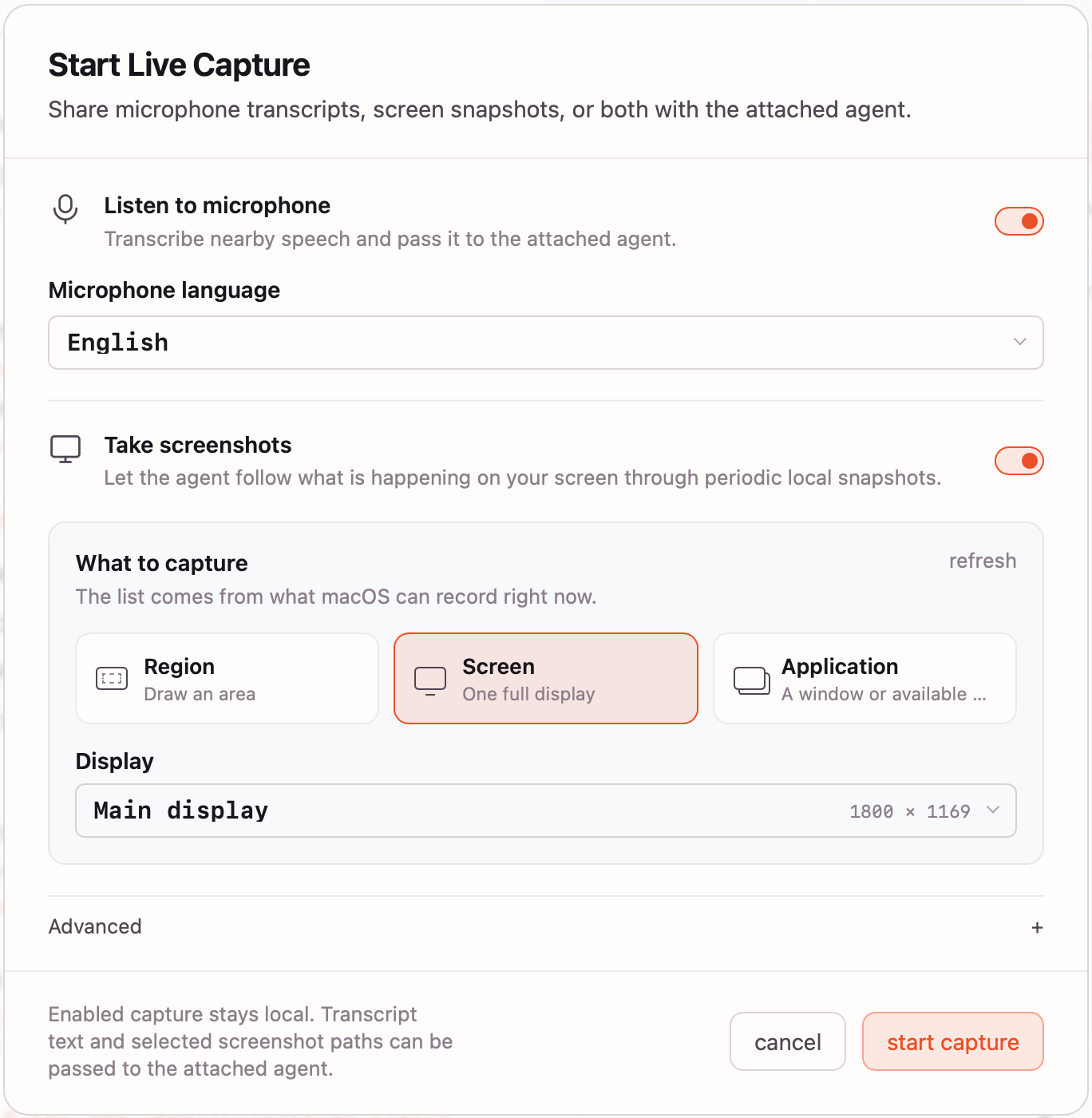
Choose what the agent can follow.
Open Start Live Capture to enable microphone transcripts, screen snapshots, or both. Choose the spoken language, then select a region, display, or application for screenshots.
04 · Presentations
Turn your working notes into a story you can present.
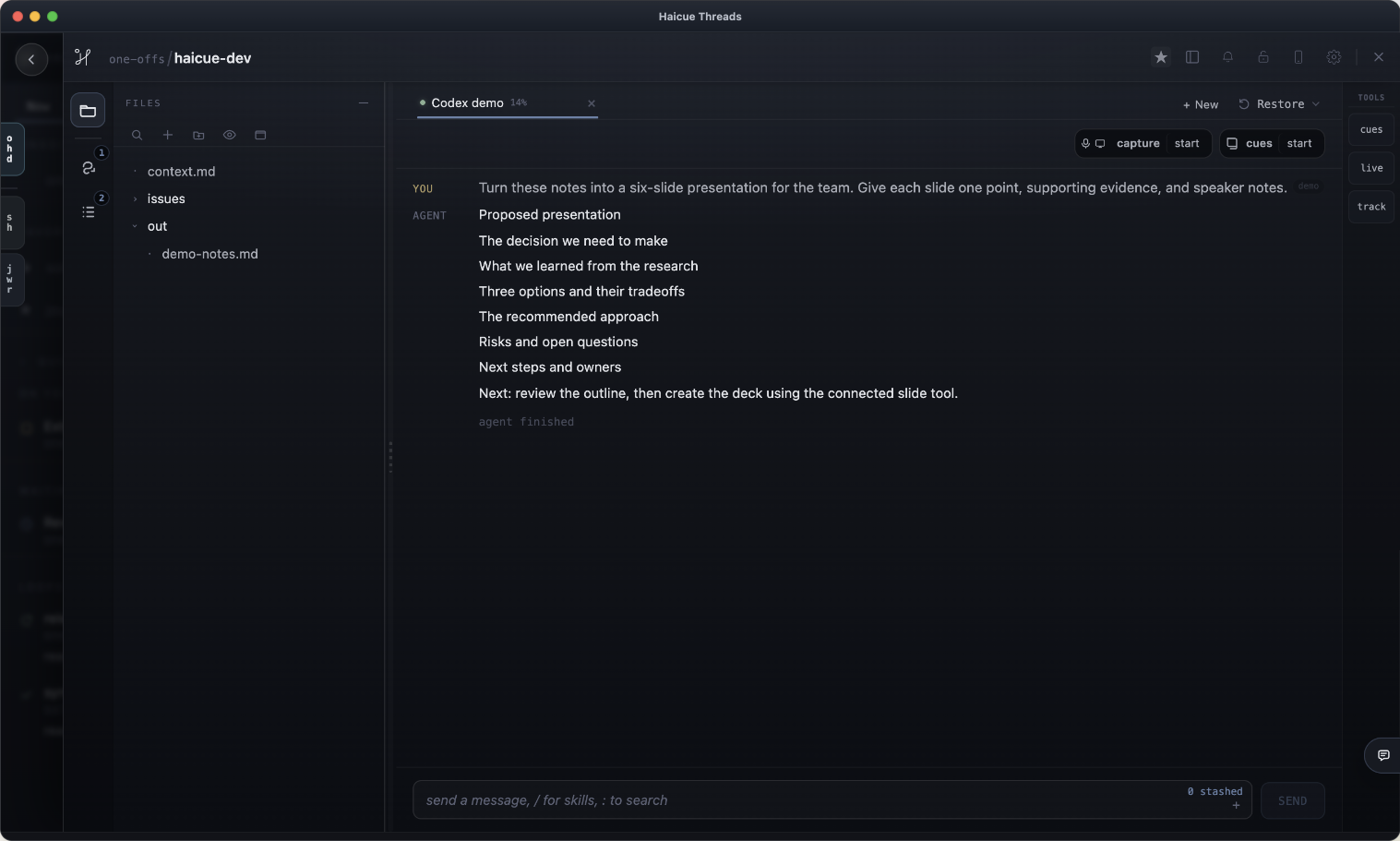
Keep research, source material, and the presentation brief in one thread. Ask an agent to shape the argument for a specific audience, then review the outline before building the slides.
With a connected slide tool or skill, the agent can create or revise the deck. Keep feedback and speaker notes in the same thread so a new session can pick up the next revision. The slide tool handles the deck; Haicue keeps the work and context together.
“Turn these notes into a six-slide presentation for the team. Give each slide one point, supporting evidence, and speaker notes. Show me the outline first. After we agree on it, use the connected slide tool to create the deck.”Connect the tools your work needs →
05 · Brainstorming
Explore a few directions before choosing one.
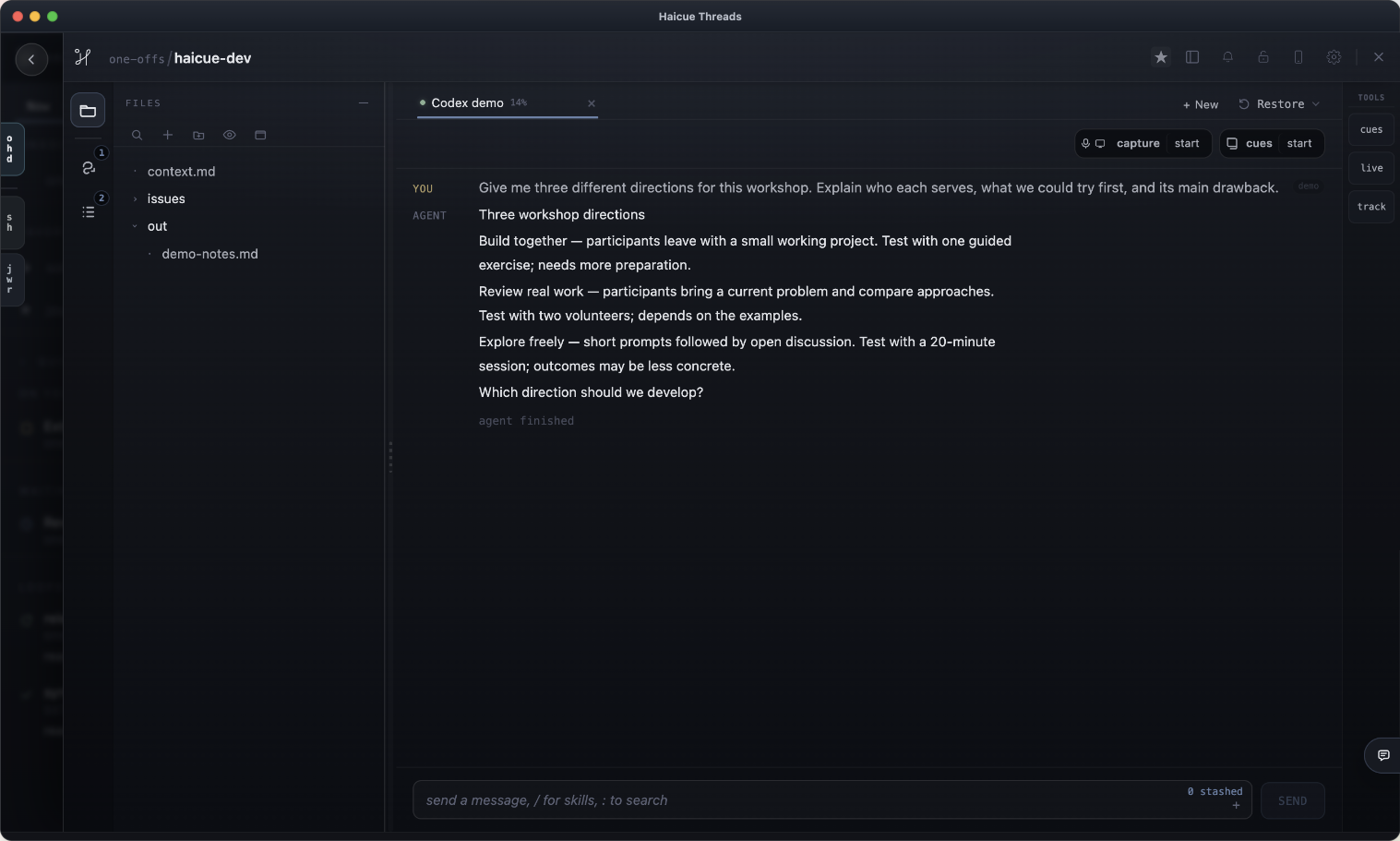
Start a thread with the problem, constraints, and ideas you already have. Ask for different approaches, then challenge the assumptions or combine the useful parts.
Use Cues to keep promising directions visible as you explore. You can ask another session to critique the shortlist, then save the choice and reasoning in the thread. The next conversation starts from that decision rather than another blank page.
“Give me three different directions for this workshop. For each, explain who it serves, the smallest thing we could try, and the main drawback. Put the shortlist in Cues and help me choose one to develop.”Explore ideas with Cues →
06 · Reviews and decisions
Give the findings somewhere to land.
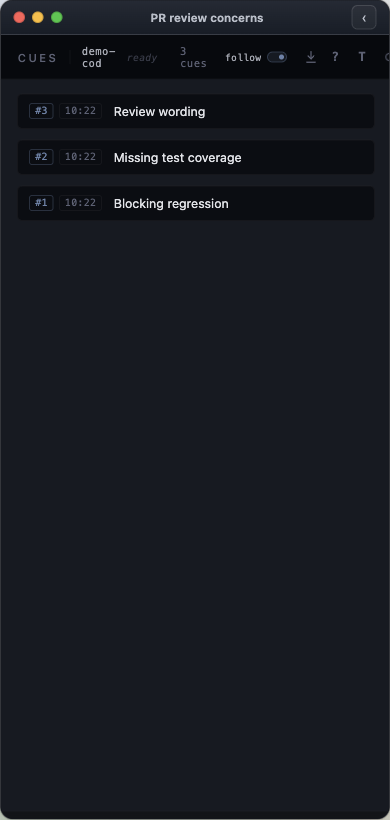
Ask an agent to review a pull request or a document and put the points worth your attention in Cues. Keep the deck beside your work while you go through them.
Open a card for detail, ask a follow-up, and settle it when you’re done. The review can continue without making you reread the entire conversation.
“Review this change. Put blockers, missing tests, and questions in Cues, with the evidence for each.”Work with Cues →
07 · Ongoing work
Come back knowing what needs you.
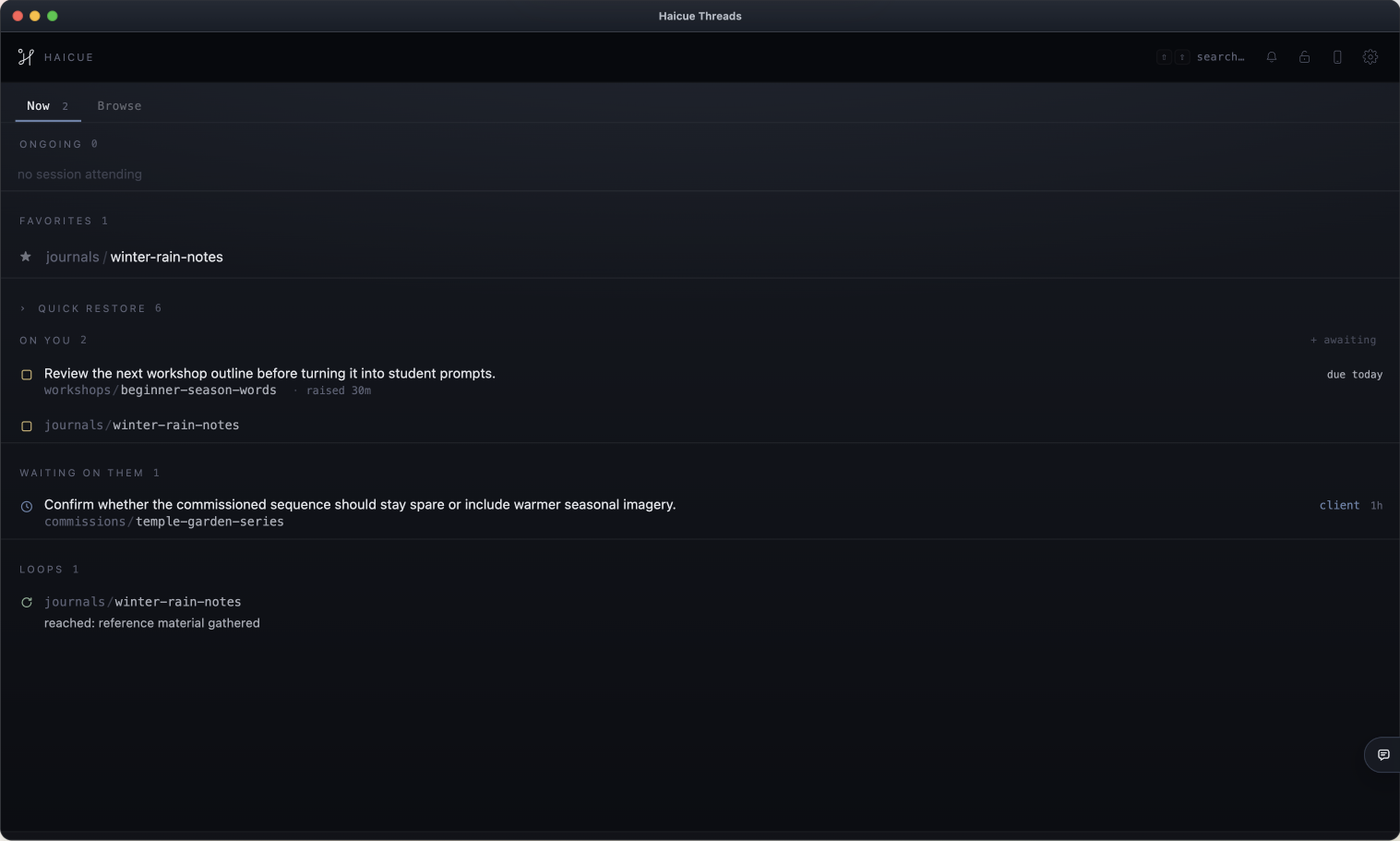
Leave a thread with a clear next step. Record the decisions you owe and the replies you’re waiting for as Awaiting items. Use loops for work that follows a repeatable process.
When you return, the Now view brings those loose ends together. Open the relevant thread and ask your agent to read the saved context before continuing.
“Summarize where we stopped. Record what needs my decision and what we’re waiting on, then save the next step in the thread.”Keep track of loose ends →
08 · Git add-on
Review the change with the repository in view.
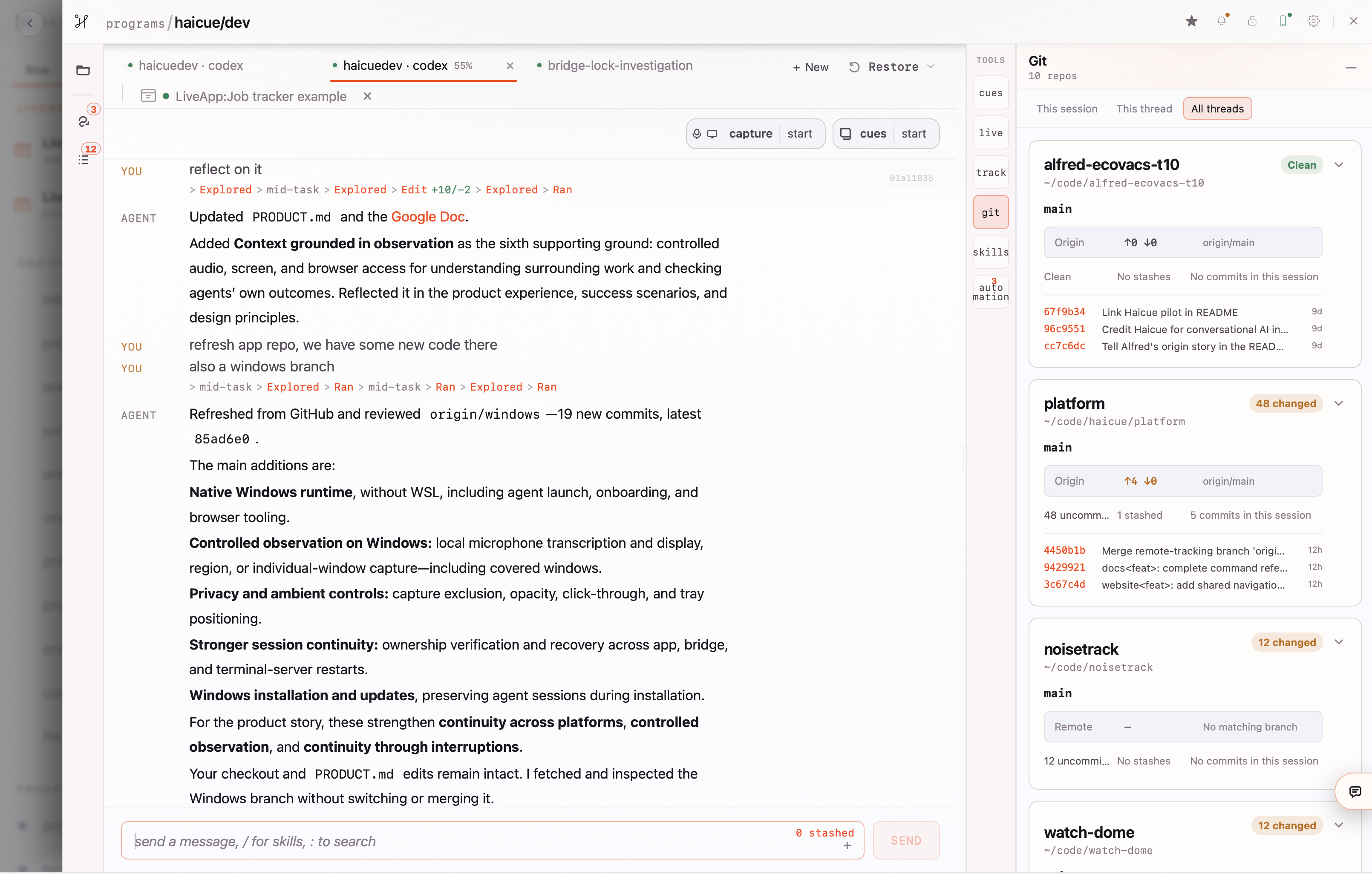
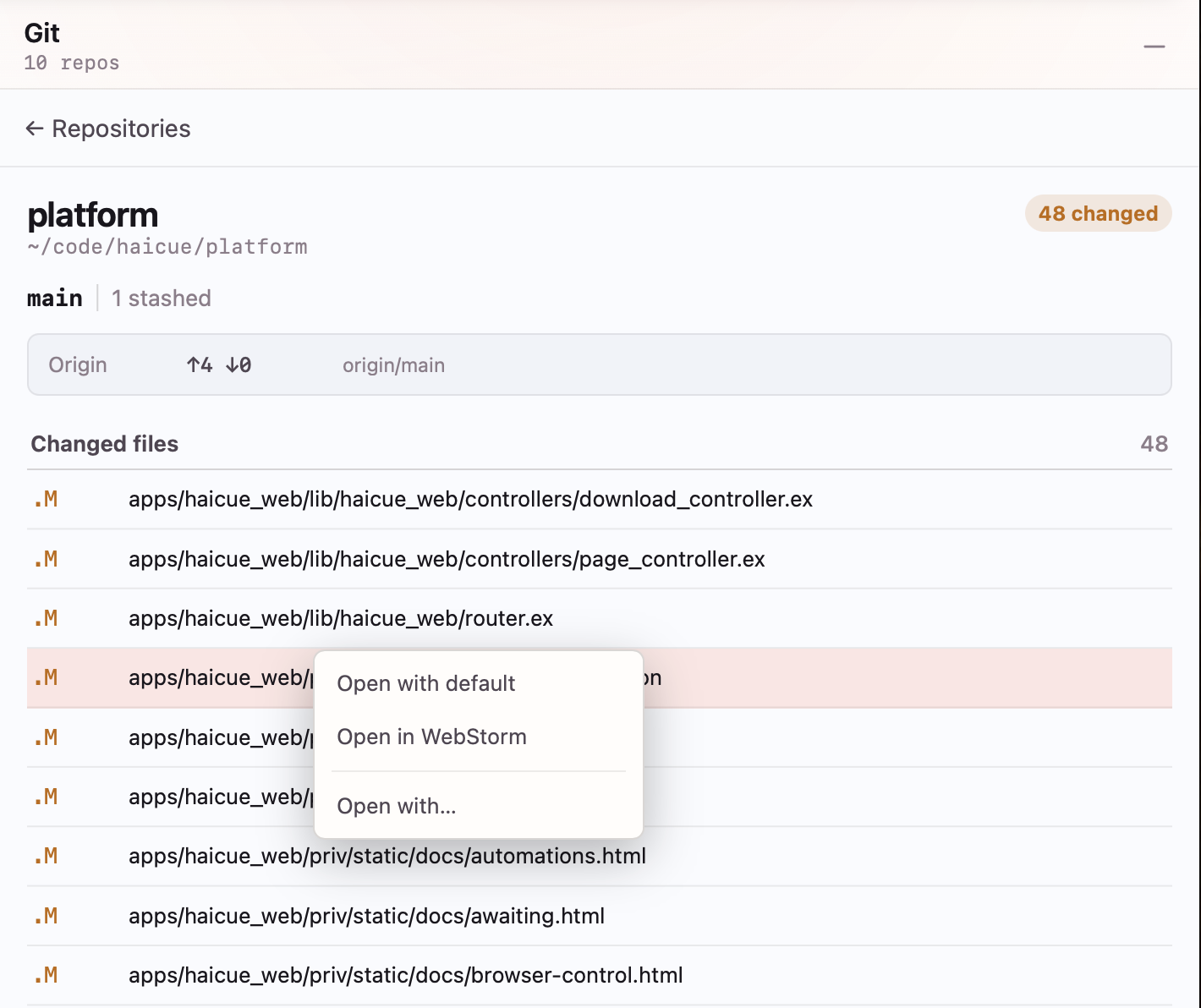
Enable Git in Settings → Add-ons, then open it in the thread’s Toolbox. Inspect the repositories associated with your projects, including linked worktrees. See changed files, staged and unstaged changes, conflicts, and recent commits.
Choose a commit file and insert its Git reference into the session’s draft. Ask the agent about that exact change, or have it inspect the repository through the command line. The Git view is read-only; staging, committing, and pushing happen through your agent, terminal, or Git client.
“Review the referenced change for missing error handling and test coverage. Check the repository state, explain any conflicts, and suggest what to verify before committing.”Review Git and file changes →
09 · Track activity
Follow the work across sessions.
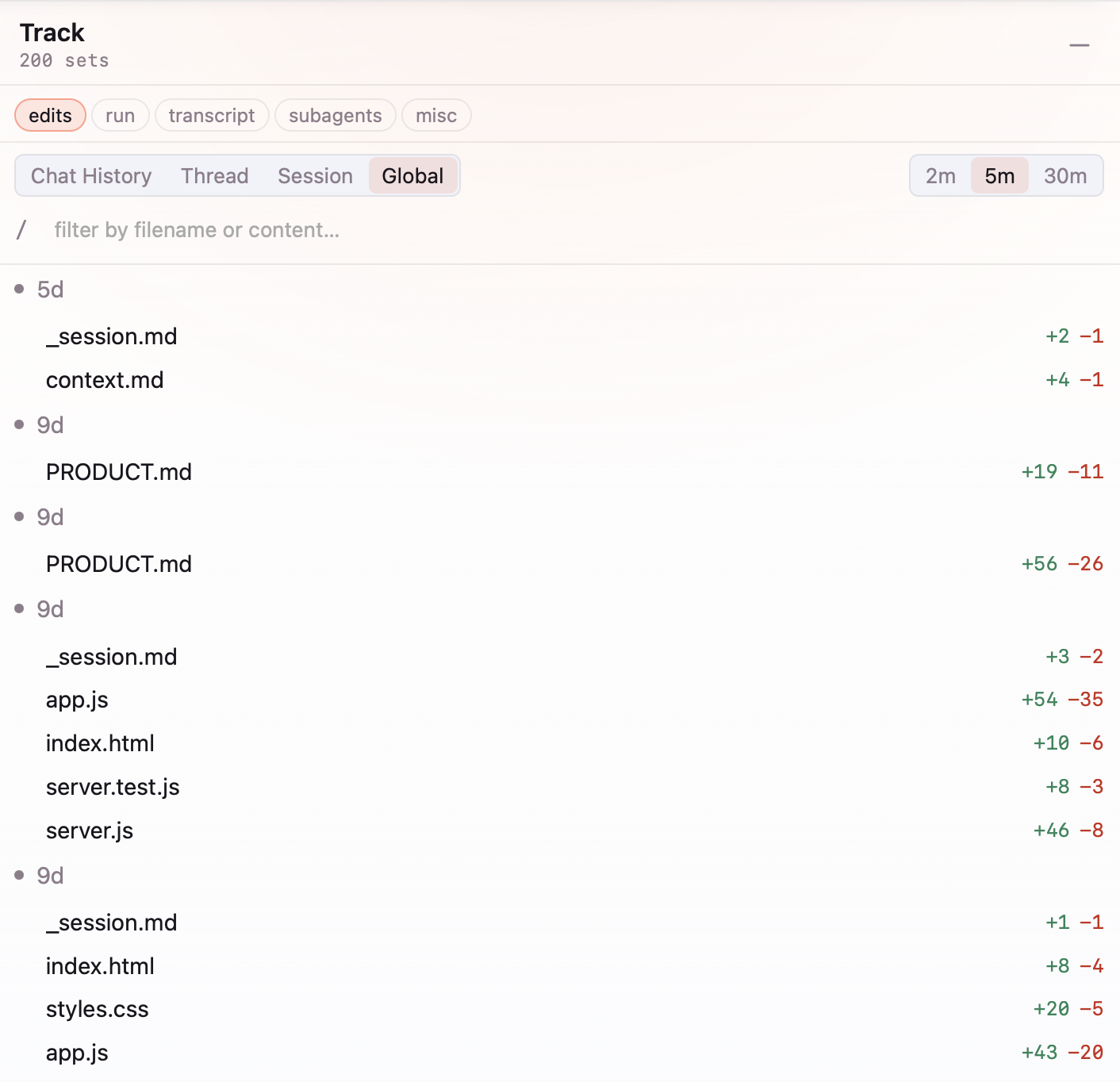
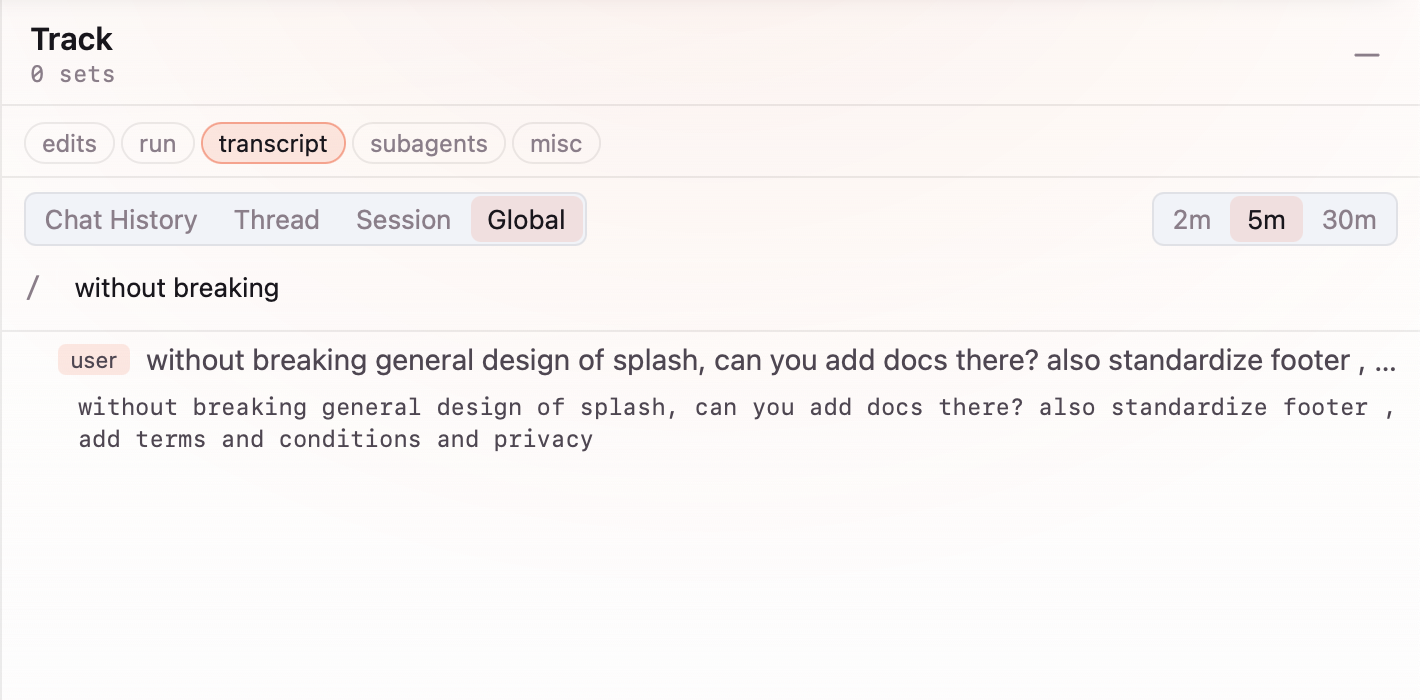
Track brings together recorded file edits, commands and their output, and conversation transcripts. Review what changed, what ran, and what you asked—even when the work spans several threads or sessions.
Use Edits for file changes, Run for commands, and Transcript for prompts and agent replies. Search by filename or content. Choose Session for one agent’s work, Thread for the sessions working on a topic, or Global to search across threads and sessions.
“Find the prompt where we discussed the website navigation. Review the related file changes and commands, then explain what still needs checking.”Use Track →
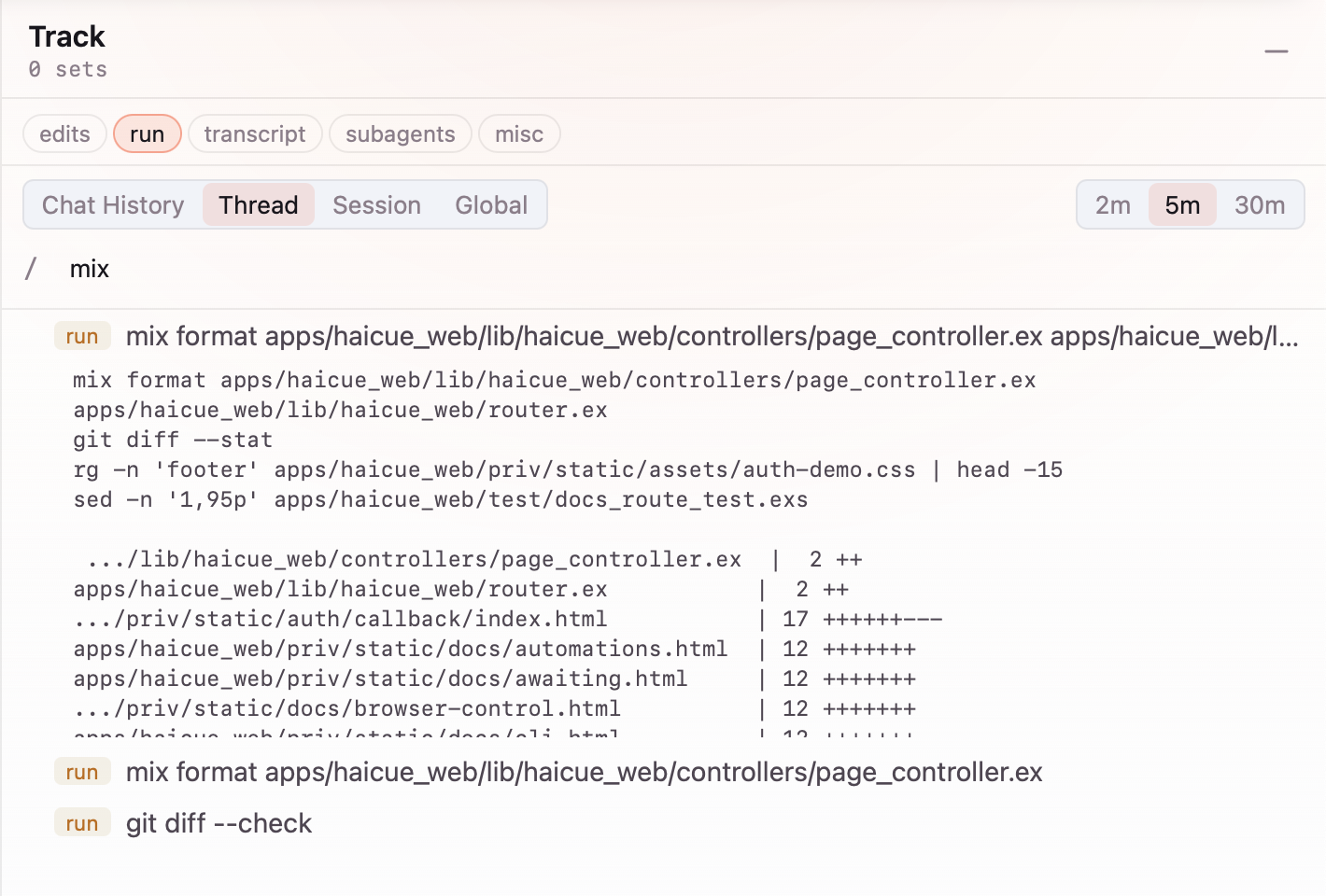
Find the command or conversation behind the work.
Expand a recorded command to read its output. Search transcripts when you remember a phrase but not which thread or session it came from.
10 · Interview prep
Practice an answer. Keep the feedback for next time.
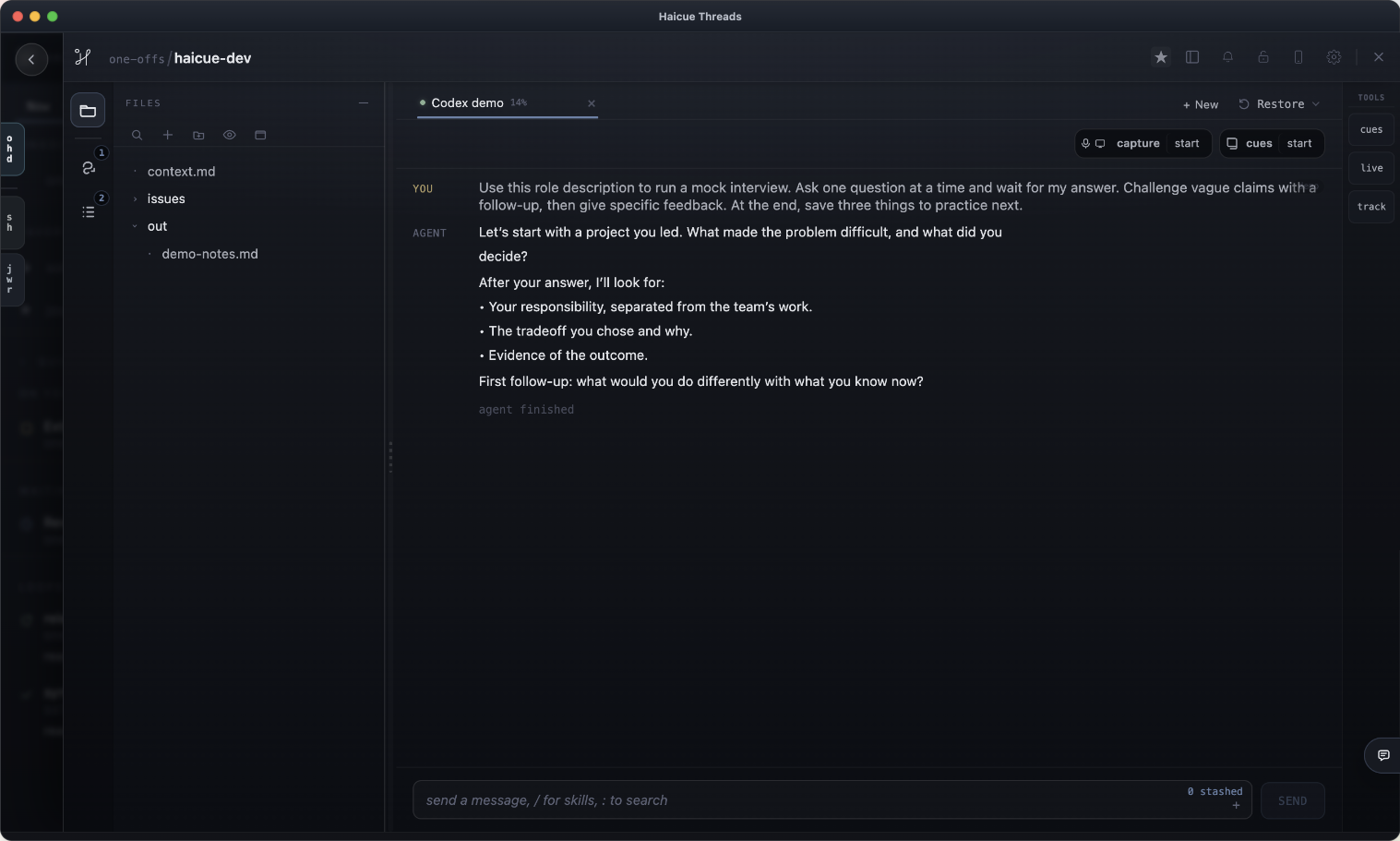
Create a thread with the role description, your notes, and the examples you want to draw on. Ask the agent to run a mock interview one question at a time, with follow-ups based on your answer.
Practice a technical problem, a system design discussion, or a story about your work. Ask for feedback on the reasoning and evidence, then save the weak spots and a plan for the next session. If you prefer speaking, Live Capture can bring your practice answer into the thread.
“Use this role description to run a mock interview. Ask one question at a time and wait for my answer. Challenge vague claims with a follow-up, then give specific feedback. At the end, save three things to practice next.”Bring your preparation into context →
11 · DevTools and browser driving
Check what actually happens in the browser.
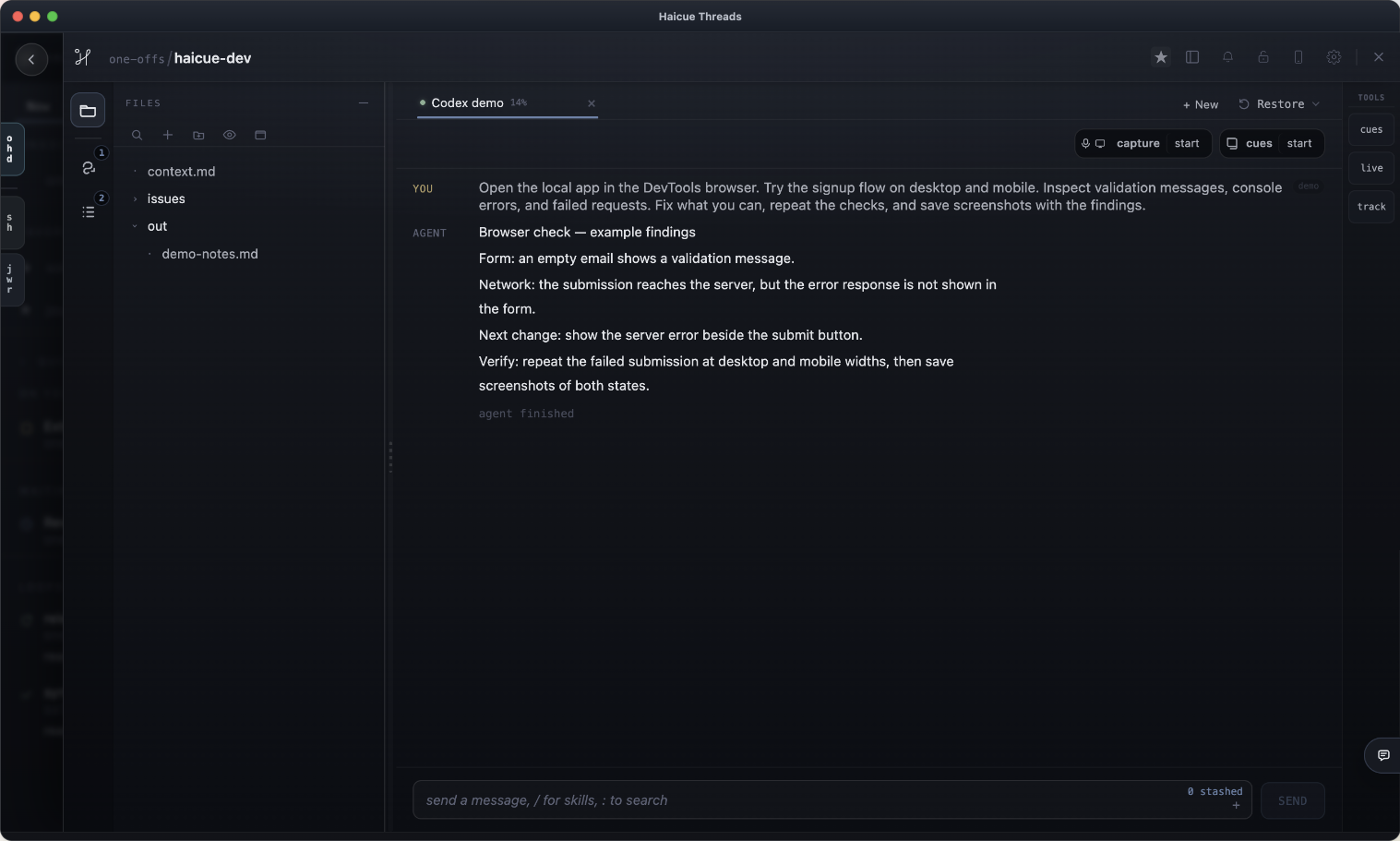
Give the agent a URL and a flow to test. Haicue’s browser-control skill drives Chromium through DevTools: it can navigate, click controls, fill forms, read the page structure, and capture screenshots.
When something fails, the agent can inspect console errors and network requests, change the code, and repeat the same interaction to check the result. Use it for a local app, a website review, or a browser-based task. The debug browser has its own sign-ins; connect the account there when the task needs one.
“Open the local app in the DevTools browser. Try the signup flow on desktop and mobile. Inspect validation messages, console errors, and failed requests. Fix what you can, repeat the checks, and save screenshots with the findings.”Drive a browser with DevTools →
12 · LiveApps
Build a tool for the work, then keep it in the thread.
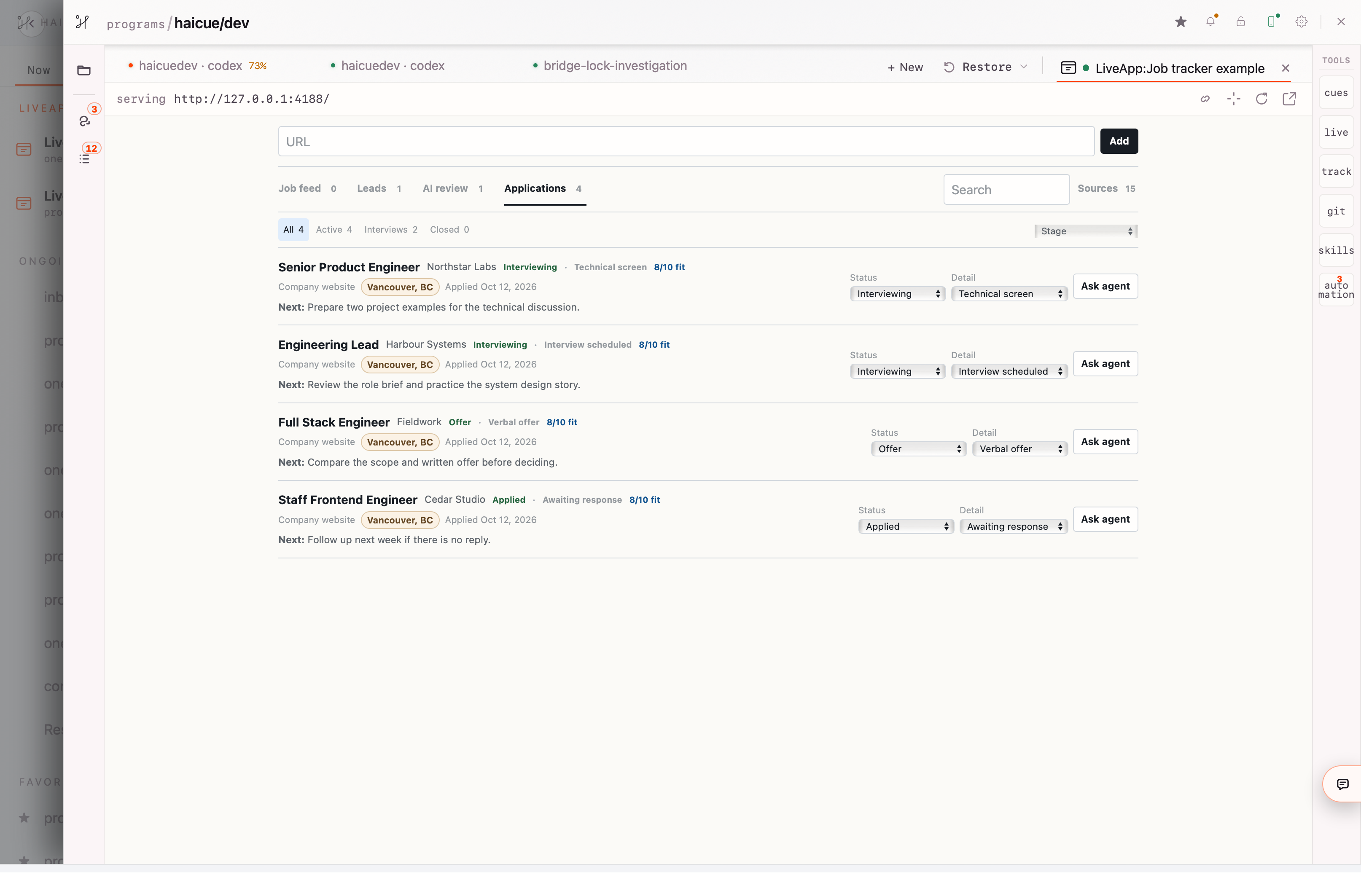
Ask your agent to build a small local app and open it as a LiveApp. It runs in a tab beside the conversation, so you can use the interface while the agent inspects it, updates it, or works with its data.
This job tracker is an app we built: it keeps leads, AI review, applications, interviews, and next actions together. Its Ask agent controls connect a specific opportunity to agent work. It is one example of a custom LiveApp—not a built-in job-search feature.
“Build a job tracker for this thread. Give me views for leads, review, and applications, with a status and next action for each role. Add an Ask agent control for reviewing an opportunity, and open the app here as a LiveApp.”Build and use LiveApps →
13 · Development
Work on the code with the changes in view.
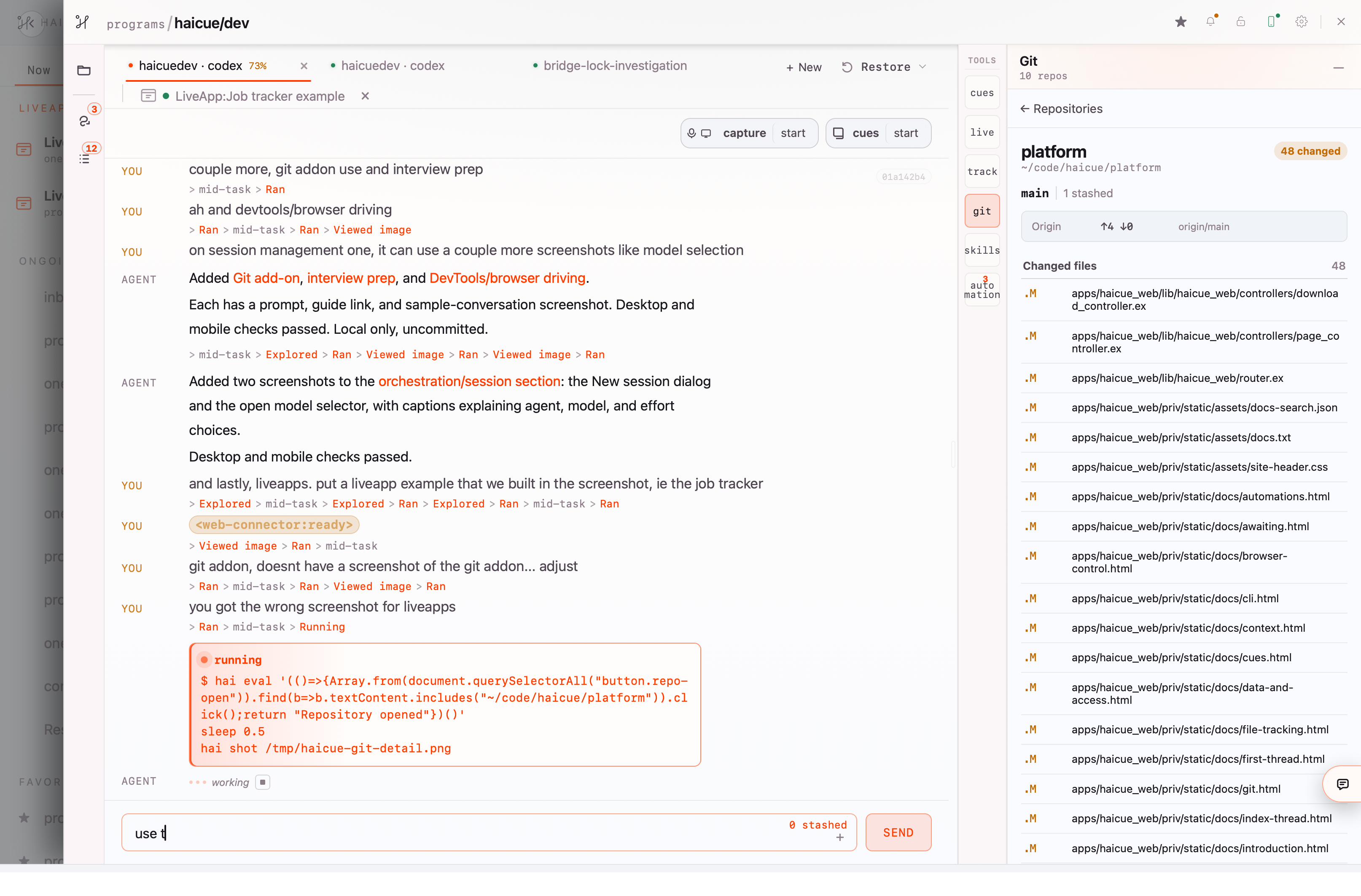
Keep a development task in a thread, talk through the change with your agent, and inspect the repository alongside the conversation. Use the Git add-on to see which files changed, then ask the agent to explain or revise a specific part.
This screenshot is from building the Haicue website itself. The session and repository panel sit together, so you can connect what the agent says it changed with the files on disk. Use browser driving or a LiveApp to check the running result before committing.
“Implement this page using the existing design. Check it on desktop and mobile, explain the changed files, and leave the result ready for review before committing.”Review the code and its changes →
14 · Everyday session tools
Keep the small steps close to the work.
Preview a Markdown file and ask about a selected passage, check a running action, or attach a screenshot without leaving your session. Find files and skills as you type, refine a prompt before sending it, and stash an unfinished draft when something else needs your attention.
These controls help you move between reading, asking, and checking while keeping the conversation in place.
Working in a session →